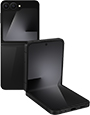
Galaxy Z Flip 7 FE eSIM Information
| eSIM Supported | ✓ Yes |
| SIM Type | eSIM + Nano-SIM |
| SIM Slots | 2 slots |
| Max eSIM Profiles | 8 profiles |
| Dual eSIM | ✓ eSIM Supported |
| Release Year | 2025 |
| Operating System | One UI |
How to Check if Galaxy Z Flip 7 FE Supports eSIM
Not sure if Galaxy Z Flip 7 FE supports eSIM? Follow these steps.
Open the Settings app on your phone
Go to About phone and look for EID or eSIM
If you see an EID, your Galaxy Z Flip 7 FE supports eSIM
How to Set Up eSIM on Galaxy Z Flip 7 FE
Setting up eSIM on Galaxy Z Flip 7 FE is easy. Follow these steps.
Buy eSIM from a provider via app or website. Get QR code instantly.
Settings > Connections > SIM manager > Add eSIM
Scan the QR code you received, or enter the code manually.
Set eSIM as primary or data SIM. Your Galaxy Z Flip 7 FE is ready to use.
❓ Frequently Asked Questions about Galaxy Z Flip 7 FE
How many eSIMs can Galaxy Z Flip 7 FE use?
Galaxy Z Flip 7 FE supports eSIM and can store up to 8 eSIM profiles. You can switch between them as needed.
Does Galaxy Z Flip 7 FE have a SIM tray?
Yes, Galaxy Z Flip 7 FE has a SIM tray for eSIM + Nano-SIM. It supports both physical SIM and eSIM.
How many SIMs can Galaxy Z Flip 7 FE use?
Galaxy Z Flip 7 FE supports 2 SIMs simultaneously (eSIM + Nano-SIM). Dual SIM is fully supported.
Can Galaxy Z Flip 7 FE use 2 SIMs at once?
Yes, Galaxy Z Flip 7 FE supports Dual SIM. You can use eSIM with a physical SIM, or use 2 eSIMs together.
What type of SIM does Galaxy Z Flip 7 FE use?
Galaxy Z Flip 7 FE supports eSIM + Nano-SIM. You can use either eSIM or physical SIM as preferred.
Which carriers support eSIM on Galaxy Z Flip 7 FE?
Galaxy Z Flip 7 FE works with eSIM from all major carriers, including travel eSIM providers for international use.
What if Galaxy Z Flip 7 FE doesn't read my SIM?
Try restarting your device. Check if the SIM is inserted correctly. For eSIM, go to Settings > Cellular and verify it's enabled, or try removing and reinstalling the eSIM.